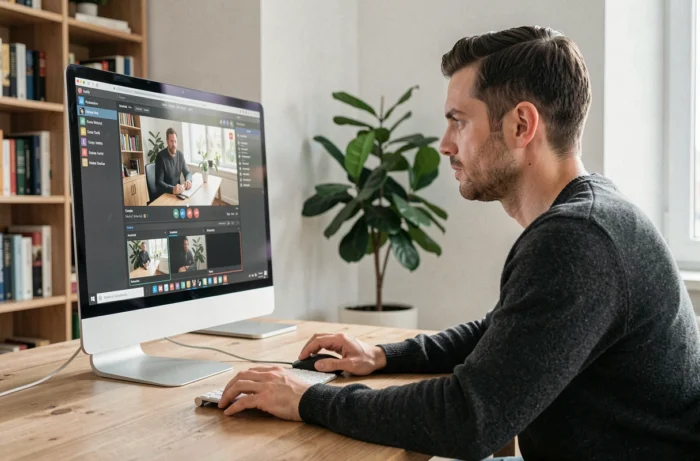
Capturing a video stream broadcast in a browser on Windows presents technical constraints that consumer guides often overlook: output codec, hardware acceleration of the browser interfering with recording, managing system sound versus microphone, and especially the recent changes in French legal framework. Here we detail the key points to obtain a usable file without loss of quality or unpleasant legal surprises.
Browser Hardware Acceleration and Capture Artifacts on Windows
The first reflex before starting a recording is to check the GPU behavior in the browser. Chrome, Edge, and Firefox enable GPU-accelerated video decoding by default, which can produce a black screen in the captured file while playback on the screen appears normal.
The problem arises from the rendering path: the decoded stream remains in video memory and does not pass through the standard Windows desktop composition surface. The screen recorder then captures an empty rectangle or a frozen frame.
The solution is to temporarily disable hardware acceleration in the browser settings before starting the capture. In Chrome, the setting is found under Settings > System. In Firefox, under Settings > Performance, uncheck “Use hardware acceleration when available.” We recommend re-enabling the option once the recording is complete to avoid degrading regular browsing.
For those who want to record a video from the internet without encountering this type of problem, it’s important to keep in mind that each browser handles the graphics pipeline differently, and a quick test of a few seconds before the actual capture can prevent discovering a black screen afterward.

System Audio Capture on Windows: Routing and Configuration
Windows does not offer native system audio capture in all its built-in tools. The Xbox Game Bar (shortcut Win + G) records the sound of the active application, but only if it is detected as a “game” or if you have added it manually. For a browser tab streaming a video, the result is random.
OBS Studio remains the reference for mastering audio routing. It allows you to add a source “Capture audio from application” on Windows 11, or capture the overall audio output via “Capture desktop audio.” On Windows 10, this granularity does not exist natively in OBS: you need to use a virtual audio device or select the system’s default output.
Separating the Audio Track from the Video Track
To obtain a clean file, configure OBS in “Advanced Recording” mode with separate audio tracks. This way, you can isolate the browser sound from the microphone, simplifying any potential later editing. The MKV container format is preferable during capture (no corruption if the process crashes), with automatic conversion to MP4 at the end via the “Remux recordings” option.
- Track 1: desktop audio (sound from the online video)
- Track 2: microphone (if you are commenting on the video)
- Track 3: overall mix for quick export without editing
This configuration avoids the classic trap of a silent recording or audio doubled by microphone feedback.
Codec and Container: Choosing the Right Setting for a Usable File
The choice of encoding codec determines both the file size and CPU load during capture. Two options dominate on Windows.
The x264 (software) encoder works on all machines but heavily taxes the processor. On a modest PC, recording a stream in 1080p can cause visible stuttering in the final file if the CPU cannot keep up.
The NVENC hardware encoder (Nvidia cards) or AMF (AMD cards) delegates the work to the dedicated GPU. The quality at equivalent bitrate is slightly lower than x264 in “slow” preset, but the CPU load drops to a few percent, freeing the processor for decoding the stream in the browser.
Recommended Settings for Web Stream Capture
- Output resolution: same as the stream playback resolution (often 1920×1080). Do not upscale.
- Bitrate: between 8 and 15 Mbps for 1080p. Beyond that, the visual gain is negligible for an already compressed web video.
- Container format: MKV during capture, remux to MP4 afterward.
- Frames per second: matched to the source. Most web streams broadcast at 30 fps, not 60.
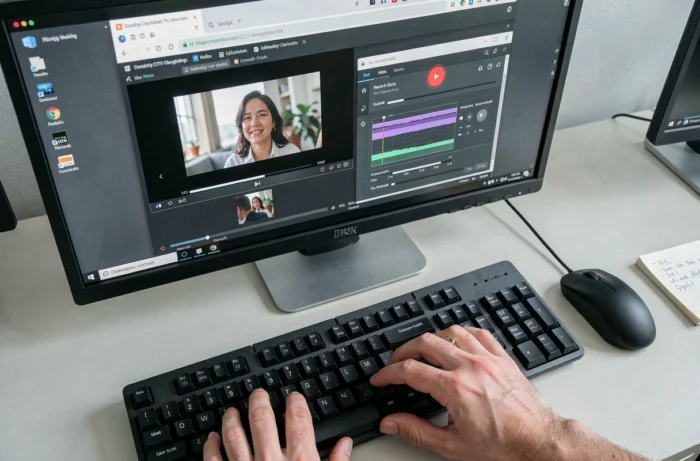
Legal Framework in France: What Has Changed Since April 30, 2026
The question of law is inseparable from capturing online videos. Since April 30, 2026, a decision by the Council of State has suspended the last step of the graduated response managed by Arcom: the authority can no longer forward current cases to the prosecutor for criminal sanctions until a new compliant decree has been published.
In practice, Arcom continues to send warnings by mail, but the simplified fine mechanism is halted for non-massive uses. Downloading or unauthorized recording of a protected work remains illegal under the Intellectual Property Code, but the risk of sanction through this specific channel is currently negligible in practice.
Automated Blocking of IPTV Streams and Sports Streaming
At the same time, France has approved the automated and real-time blocking of IPTV streams and pirate streaming sites. ISPs must now immediately block suspected illegal streams, without prior human verification. The regularity of the blocking is controlled afterward.
For a user wishing to capture a live sports stream, this means that the stream can be cut off during recording without warning. Planning a backup recording or ensuring that the source is an official broadcaster helps avoid ending up with a truncated file.
Recording content for strictly personal use (private copy of a stream to which you have legal access) remains tolerated, but the line with counterfeiting is drawn on the nature of the source stream and any potential redistribution of the file. Capturing a public webinar or your own live stream poses no issues. Capturing a movie on a DRM-protected SVOD platform falls under a completely different legal category.